


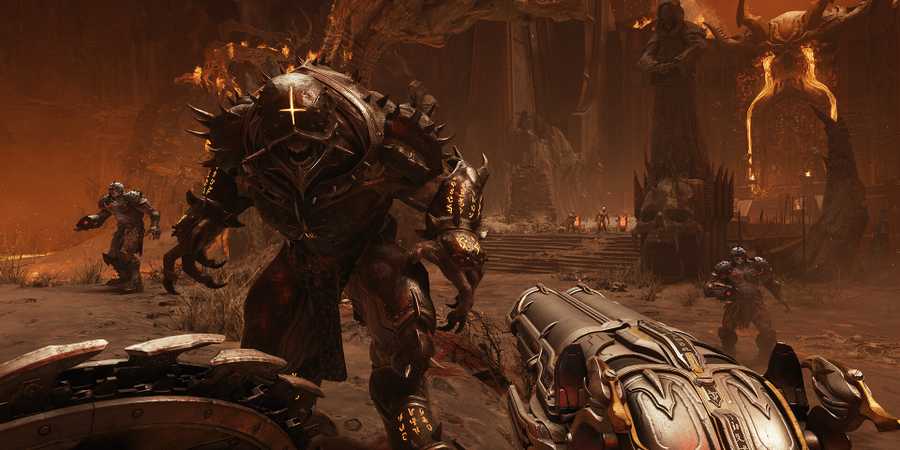
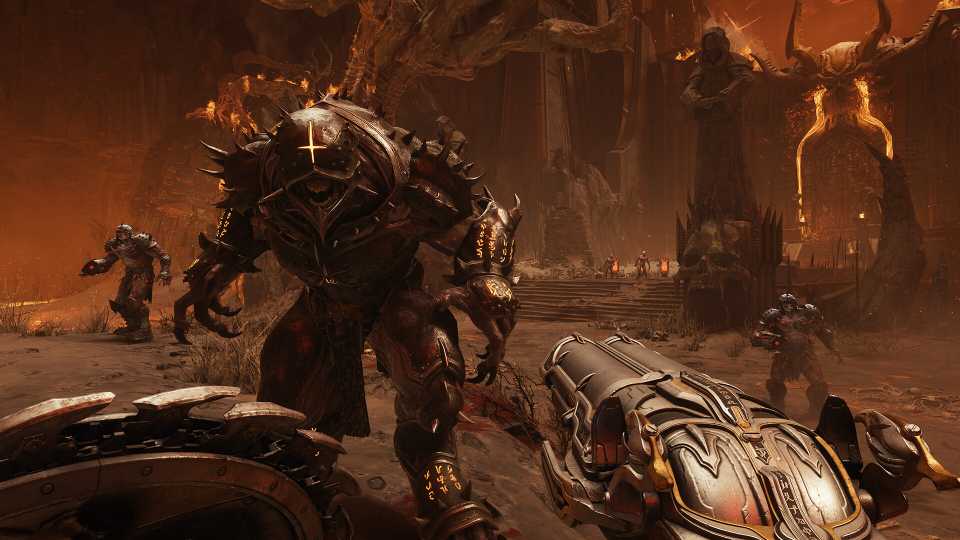
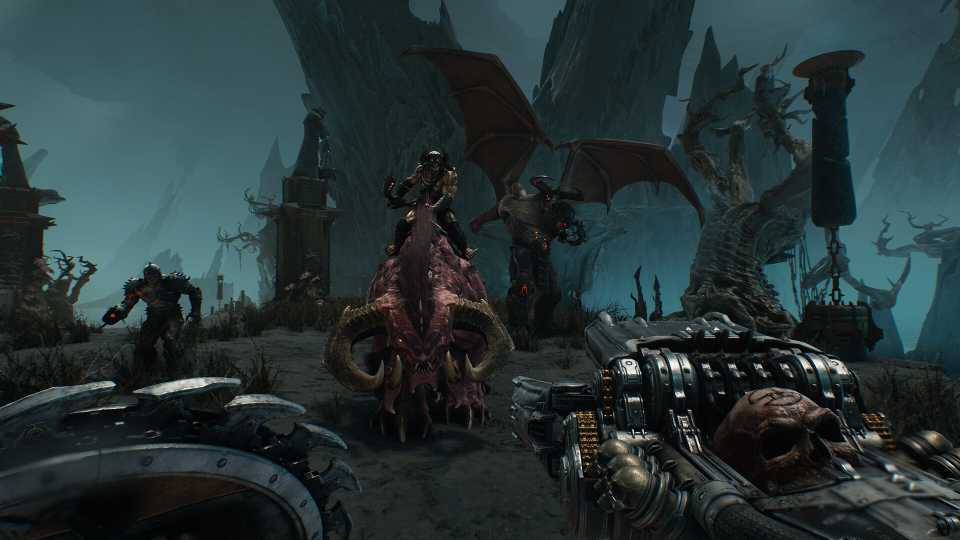
The visual quality of Doom: The Dark Ages looks phenomenal, with the developers pushing the limits of the id Tech engine to the max to breathe life into the hellscape and its demonic inhabitants. While it packs a punch when it comes to graphics, this entry into the Doom Slayer saga can challenge the PC hardware it's run on. While the previous entries are known for their buttery-smooth performance, this entry is no different, except for a few hitches during intense action scenes. So, here are the best PC settings to optimize the game's performance even further.

DOOM The Dark Ages: All Wolf Statue Locations in Resurrection
There are four wolf statues in Chapter 20 of DOOM: The Dark Ages. Destroying all of them will reward players with a Wraithstone.
Best PC Settings for Doom The Dark Ages

Doom: The Dark Ages features a ton of graphical options that allow players to thoroughly tune its graphical fidelity to run properly on PC. One of the things players will immediately notice is the inclusion of two additional presets in the graphics quality section: Nightmare and Ultra Nightmare. These presets can unleash the game's graphical prowess, making each scene a spectacle to behold.
Keeping all that in mind, let's tune the individual settings to figure out the sweet spot that lets you enjoy the game's high-quality visuals without compromising on high FPS.
There aren't any Ray Tracing settings for Doom: The Dark Ages, as it employs baked-in RT techniques that are activated by default. This can impact the performance of mid-range PCs.
|
Type |
Settings |
Best Preset |
Notes |
|---|---|---|---|
|
Display |
Window Mode |
Borderless Window |
Although fullscreen mode is the way to go to enjoy the best performance in Doom: The Dark Ages, Borderless is a much more stable mode to run the game currently. |
|
Resolution |
Native |
Any resolution lower than Native will make the game textures increasingly blurry. |
|
|
Refresh Rate |
Select the maximum refresh rate supported by your display here. |
||
|
Vertical Sync |
Off |
Doom is a fast-paced FPS shooter that requires twitchy movements for players to nail those baddies from hell in the head. Turning on VSync can impact the input latency. It's recommended to use Nvidia G-Sync or AMD FreeSync instead. |
|
|
Present From Compute |
On |
Improves the game's performance. However, players should disable any software overlays from third-party apps like Discord or Steam if they run into issues like crashing. |
|
|
Resolution Scaling Mode |
Off |
There's no need to use traditional scaling techniques when there are AI Upscalers already in the game. |
|
|
Video |
Field of View |
Although FOV depends on your preference, it's best not to max it out to avoid a performance hit. |
|
|
Chromatic Aberration |
Off |
Slightly distorts the clarity of the game; best to leave this cosmetic setting off. |
|
|
Depth of Field |
On |
- |
|
|
Sharpening |
Anywhere from 1.5 to 2.5 is great. If you're planning on using AI Upscalers, it's best to leave the option at default values. |
||
|
Film Grain |
|||
|
Upscaler |
DLSS/FSR |
Doom The Dark Ages has implemented both the latest versions of Nvidia DLSS and AMD FSR to generate the best quality upscaled image while improving performance. |
|
|
Sharpness |
Player's Preference |
- |
|
|
Frame Generation |
If you're already getting good performance by adjusting the upcoming quality settings, leave FG off. Otherwise, you can rely on FG to improve FPS, but it will increase input latency and may cause some instability issues in its current state. |
||
|
Advanced |
Quality Slider |
Custom |
We'll be tweaking individual graphical options in this section, instead of choosing a pre-determined preset. |
|
Texture Pool Size |
GPU Dependent |
According to the VRAM usage statistics on the bottom right corner of the screen, adjust this setting to allocate a fixed amount of VRAM to the game. The higher the slider moves, the more VRAM is allocated for the game's textures and shaders. |
|
|
Shadow Quality |
High |
Mostly impacts the performance during daylight scenes when shadow is cast. High shadows look just as great. |
|
|
Reflections Quality |
High |
- |
|
|
Lights Quality |
Ultra |
The game's lighting plays a big role in creating the right atmosphere for the Doom Slayer's rampage. Best to crank it up to ultra. |
|
|
Particles Quality |
High |
Players can experience FPS drops during high-action scenes with multiple enemies shooting energy blasts at once. Best to keep it at high instead of cranking up to higher presets. |
|
|
Decal Quality |
Ultra |
- |
|
|
Water Quality |
High |
- |
|
|
Volumetrics Quality |
Ultra |
- |
|
|
Texture Filtering Quality |
Nightmare |
Improves the texture clarity for enemies and the Doom Slayer's weapons. It does not impact the performance that much. |
|
|
Shading Quality |
Ultra |
- |
|
|
Directional Occlusion |
Nightmare |
- |
|
These are the best settings for Doom: The Dark Ages on PC that players should use to optimize the game's performance. The above settings were tested on a gaming laptop with an i9-14900HX CPU, Nvidia RTX 4080 Mobile GPU, and 32 GB RAM.
Using the DLSS set to quality mode and Frame Generation, the FPS averaged around 100-105, while the 1% lows were at 95. However, there were some graphical and performance hitches during intense scenes, like FPS drops, but there weren't any crashes during the testing. It's recommended that players update their GPU drivers to the latest offering from both AMD and Nvidia to get the most stable experience out of the game.


DOOM: The Dark Ages



-
 OpenCritic Reviews
- Top Critic Avg: 86 /100 Critics Rec: 95%
- Released
- May 15, 2025
- ESRB
- M For Mature 17+ // Blood and Gore, Intense Violence
- Developer(s)
- id Software
- Publisher(s)
- Bethesda Softworks


WHERE TO PLAY



- Engine
- id Tech
- Franchise
- DOOM
- Genre(s)
- FPS, Action, Sci-Fi & Fantasy
- Platform(s)
- PC, Xbox Series X, Xbox Series S, PlayStation 5
