


Borderlands 4 features an explosive and high-octane looter-shooter experience that players can enjoy, as they grapple around the map and hunt down dangerous foes. While the game is meant to be fast-paced, several performance issues are causing players to experience issues like low FPS and stuttering. Hopefully, there's a post-launch patch underway that will improve the game's optimization on PC. But, until that happens, here are some optimized settings for you to try.

Borderlands 4 Legendary Weapon Spotted
One observant Borderlands 4 fan highlights at a legendary weapon coming in the highly anticipated game from Gearbox Software.
Optimized Settings for Borderlands 4 on PC

Borderlands 4 offers several graphics settings that players can optimize to make the game perform significantly better on their PCs. The visual settings are divided into two categories: basic and advanced settings. Here are some of the best settings you can use in the game to uplift the performance.
|
Type |
Settings |
Optimized Preset |
Notes |
|---|---|---|---|
|
Basic |
Display Mode |
Fullscreen |
While Windowed Fullscreen is usually preferred, it can prevent players from using their native resolution. |
|
Resolution |
Native |
Use the maximum/native resolution that your display supports to enjoy crisp visuals, without any blurriness. |
|
|
Limit Frame Rate |
Off |
The goal of these Borderlands 4 best settings is to squeeze as much performance out of your system as we can for Borderlands 4, so the limit FPS feature is just going to hinder it. |
|
|
Vertical Sync |
Off |
It'll introduce increased latency to the game, which isn't ideal considering the fast-paced action of the game. |
|
|
Field of View |
Personal Preference |
Both the character and vehicle FOV can be adjusted according to your preference. However, maxing them out can negatively affect performance a bit. |
|
|
Advanced |
Graphics Preset |
Custom |
We'll tweak individual settings, so there's no need to use a static graphical preset. |
|
Anti-Aliasing |
Disabled |
We'll be using AI upscalers, so this option won't be available. If you aren't using them, feel free to turn them on. |
|
|
Upscaling Method |
FSR/DLSS |
For Nvidia RTX series GPU users, the DLSS option is the way to go. For AMD GPU users and others, FSR will be the best option. |
|
|
Upscaling Quality |
Balanced |
You'll optimize Borderlands 4 the most by switching upscaling quality to Balanced, as it's a sweet spot between good texture resolution and performance. |
|
|
Spatial Upscaling Quality |
Disabled |
This option activates only with TSR. Since we're prioritizing DLSS and FSR, this option will be disabled. |
|
|
Frame Generation |
Enabled |
This option is currently only available with DLSS, i.e., users with Nvidia RTX 40 Series cards or above. However, you can check out our guide on how to enable Frame Gen for all GPUs. |
|
|
Nvidia Low Latency |
Enabled |
If you own an Nvidia RTX 30 series GPU or lower, this option is great for reducing input latency. |
|
|
HLOD Loading Range |
Far |
Anything less than Far will introduce a visible texture pop-in issue. |
|
|
Geometry Quality |
Medium |
Lowering Geometry Quality gives a decent performance boost, in exchange for reducing insignificant details from character models and environments. |
|
|
Texture Quality |
Depends on GPU VRAM |
8GB VRAM: Medium, 10GB+ VRAM: High-Very High |
|
|
Textures Streaming Speed |
High |
This will further increase the texture loading speed in various areas of the game, reducing instances of texture pop-ins. |
|
|
Anisotropic Filtering Quality |
16x |
This is one of the best Borderland 4 settings to improve the clarity of textures with minimal impact on Borderland 4's performance. |
|
|
Foliage Density |
Medium |
It has a heavy impact on performance, especially in outdoor areas with a lot of grass. Best keep it at medium. |
|
|
Volumetric Fog |
Medium |
Impacts the foggy sections of the game's world. High may look the best among presets, but exacts a great toll on performance. Medium is the best optimized preset in this regard. |
|
|
Volumetric Cloud |
Low |
Clouds aren't something many players will stop and look at in the game, so best to keep this setting at low. |
|
|
Shadow Quality |
Medium |
Shadows also impact the performance quite a lot; medium is the sweet spot. |
|
|
Directional Shadow Quality |
The same goes for directional shadow quality as well. |
||
|
Volumetric Cloud Shadows |
Disabled |
Impacts the game's performance on the GPU quite a lot. So, for the best optimized settings, it's best to leave it off for Borderlands 4. |
|
|
Lighting Quality |
Medium-High |
Depending on how much performance you can spare, high seems to be the best preset here with minimal loss of lighting quality. However, feel free to switch to medium to gain FPS. |
|
|
Reflections Quality |
High |
This setting activates when you're around reflective surfaces in Borderlands 4, especially indoors. High can be a bit taxing, but produces the best quality of reflections. However, you can turn this to low to gain more FPS. |
|
|
Shading Quality |
Medium |
Impacts several in-game textures, and medium is the best preset for it. |
|
|
Post Processing Quality |
Very High |
Since the goal is to figure out the best settings for Borderlands 4 on PC, it's best to keep the Post Processing quality to very high. This is due to the fact that it doesn't significantly impact FPS. |
|
|
Motion Blur |
Off |
Distorts in-game visuals, especially in gunfights. |
These were the best settings for Borderlands 4 that players can use to improve the game's performance on their PC. These optimized settings were tested on a gaming laptop with an Intel i9-14900HX CPU, Nvidia RTX 4080 GPU, and 32GB RAM. At 1600p resolution with DLSS set to balanced and Frame Generation, the FPS averaged in the 85-90 FPS mark. The 1% lows were at 55 FPS, which is quite low considering the number of settings that were turned down.
So, one thing the testing proves is that the game requires a lot of optimization work before a majority of players can invest hours in Borderlands 4. Hopefully, a few optimization patches are underway that will improve the game's stability and performance on the majority of hardware.
2K has also acknowledged the performance issues in the Borderlands 4 PC port and put out some optimization suggestions. Feel free to check them out to further improve the game's performance on your hardware.


Borderlands 4




-
 OpenCritic Reviews
- Top Critic Avg: 82 /100 Critics Rec: 88%
- Released
- September 12, 2025
- ESRB
- Mature 17+ / Blood and Gore, Intense Violence, Sexual Themes, Strong Language, In-Game Purchases, Users Interact
- Developer(s)
- Gearbox Software
- Publisher(s)
- 2K

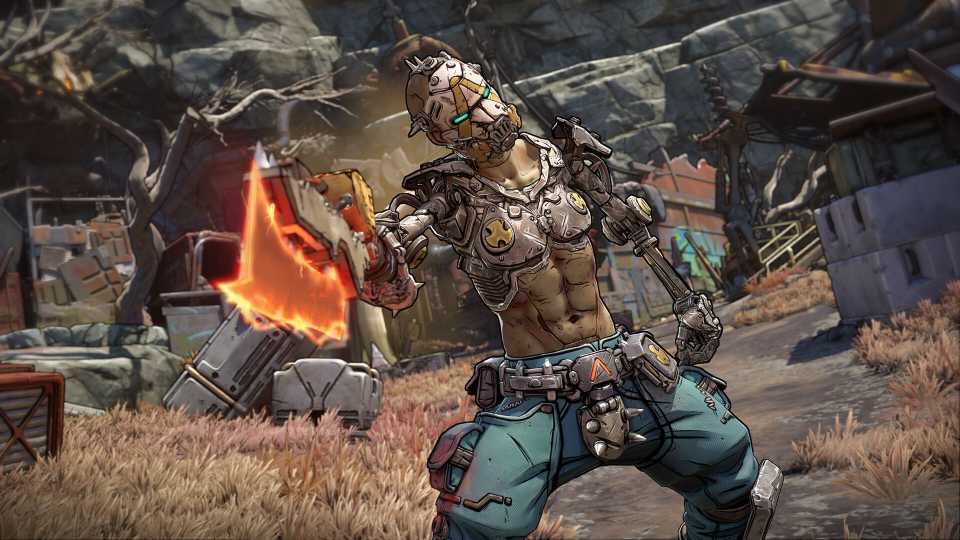
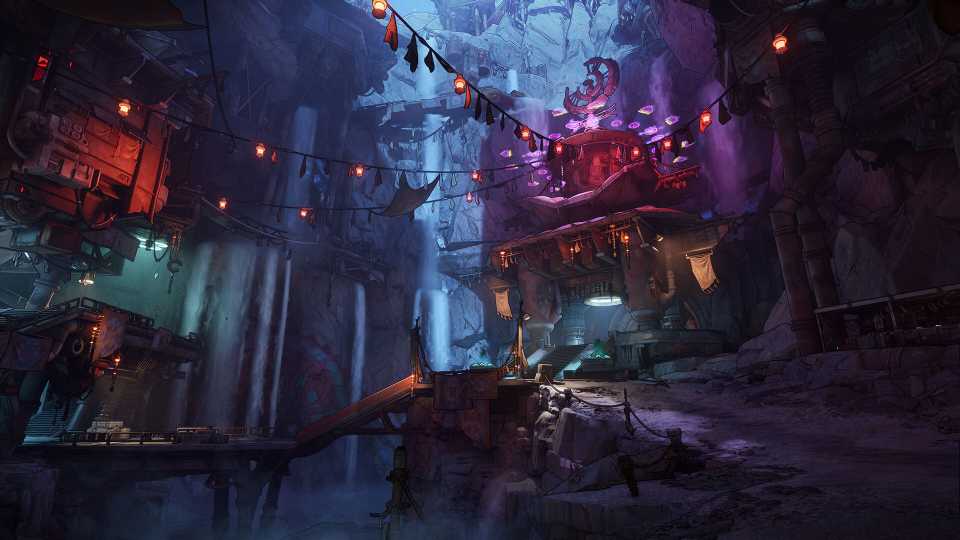
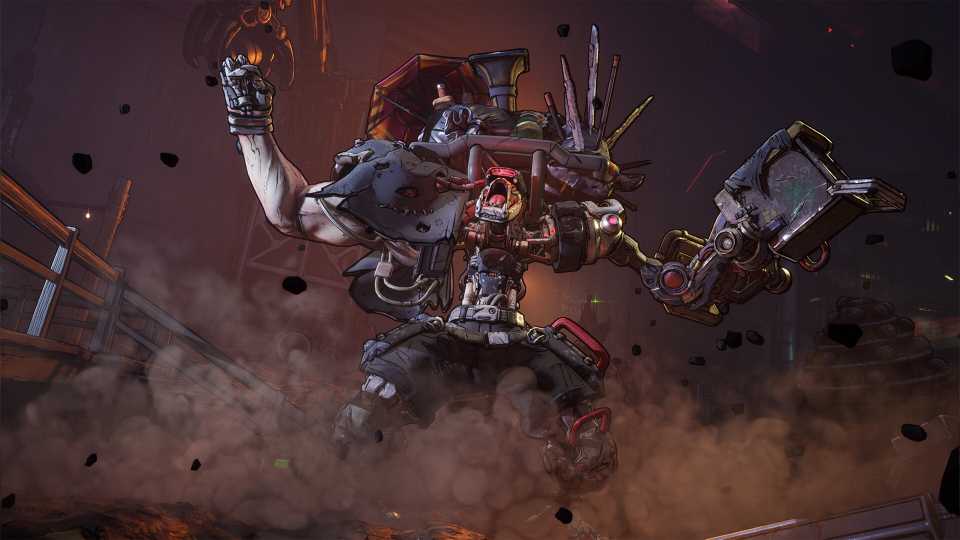
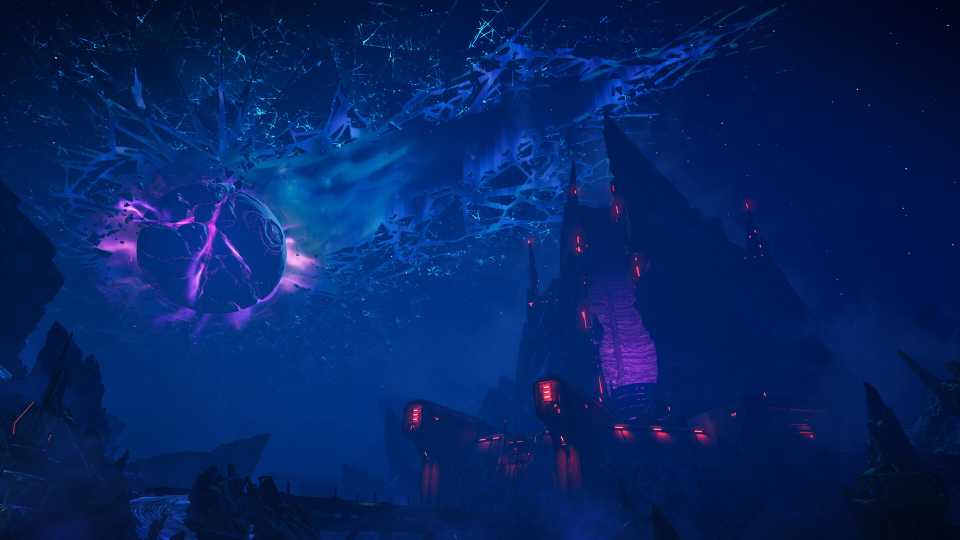




WHERE TO PLAY





- Engine
- Unreal Engine 5
- Multiplayer
- Online Co-Op, Online Multiplayer
- Cross-Platform Play
- Yes - all platforms
- Prequel(s)
- Borderlands 3, Borderlands 2, Borderlands
- Franchise
- Borderlands
- Number of Players
- 1-4 players
- Steam Deck Compatibility
- Unsupported
- PC Release Date
- September 12, 2025
- Xbox Series X|S Release Date
- September 12, 2025
- PS5 Release Date
- September 12, 2025
- Nintendo Switch 2 Release Date
- October 3, 2025
- Platform(s)
- PlayStation 5, Xbox Series X, Xbox Series S, Nintendo Switch 2, PC
- Local Co-Op Support
- Yes
- X|S Optimized
- Yes
