


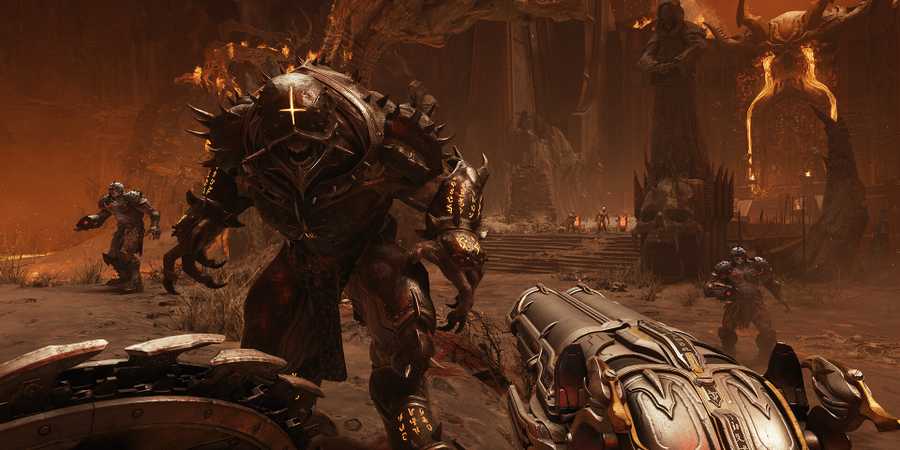
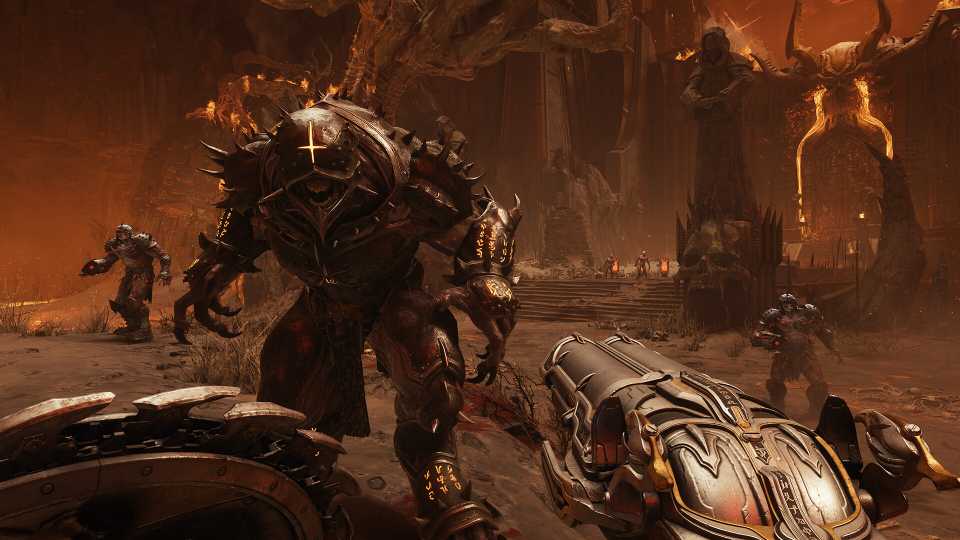
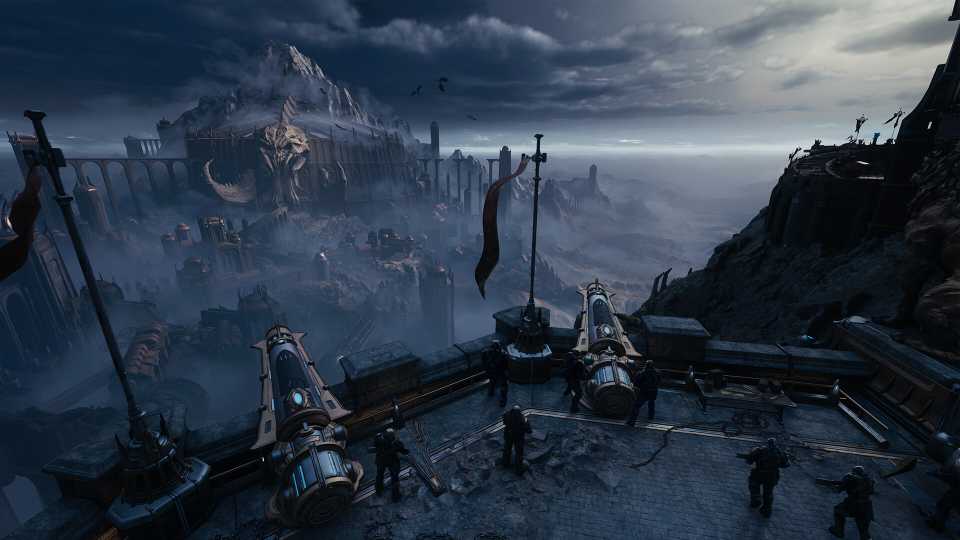
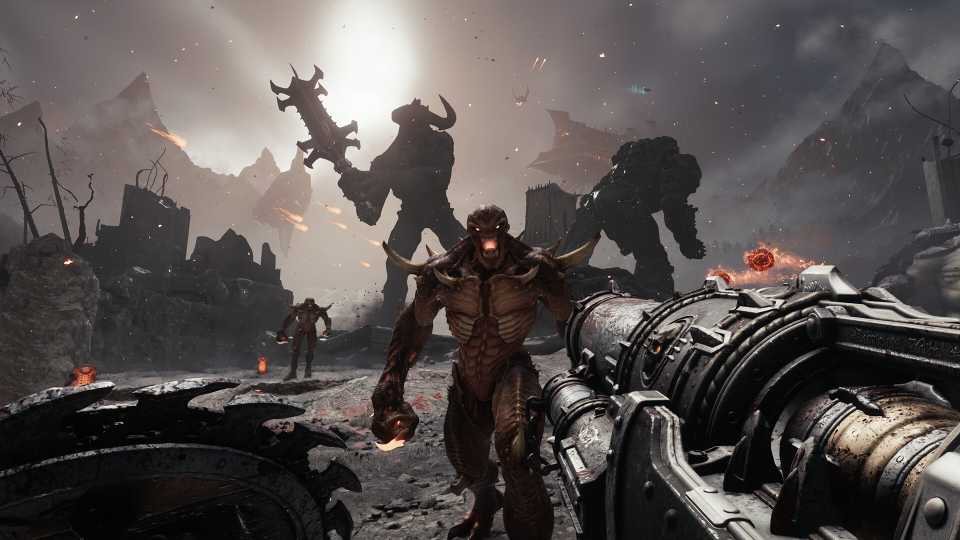
Doom: The Dark Ages, the latest installment in the Doom franchise and the prequel to Doom (2016), takes you on a journey through the Doom Slayer’s early life. While maintaining the series' signature fast-paced combat, Doom: The Dark Ages leans towards a heavier, more grounded experience. Of course, before you can enjoy the story, you’ll need to change the language if your desired language isn't set as the default. This guide will walk you through the steps of changing the language in Doom: The Dark Ages on PC and Xbox.

The Main Doom Timeline, Explained
The primary timeline of Doom games shows the evolution of the Doom Slayer, transforming from a marine on Mars into an interdimensional warrior.
How To Change Language on Steam PC
If you're playing Doom: The Dark Ages on Steam and want to change the language, you won't find an option within the game itself. Instead, you'll need to adjust this setting through the Steam client. Here's how:
- Find Doom: The Dark Ages in your Steam Library and right-click on it.
- From the context menu, select Properties.
- In the Properties window, go to the General tab.
- Under the "General" tab, you'll find a language dropdown menu, usually located below the Overlay settings. Click on this dropdown and choose your preferred language.
For PC users playing Doom: The Dark Ages on Battle.net, the process for changing the language is pretty similar. Simply find Doom: The Dark Ages in your game library, access its game settings, and then select your desired language from the available menu. After making your selection, you can launch the game, and it will now run in your chosen language.
How To Change Language Through Xbox Game Pass on PC
It's a common issue with Game Pass on PC that Doom: The Dark Ages might default to a language other than English, based on your Windows regional settings. Here's how you can change the language through Game Pass:
- In the Xbox App, right-click on Doom: The Dark Ages.
- Select "Create desktop shortcut".
- On your desktop, create a new text file and rename it with a.bat extension (e.g., Doom.bat).
- Open the.bat file and paste the following line: ".\DOOM The Dark Ages.lnk" +sys_langPlatform "en"
- Save the.bat file.
- Launch the game by double-clicking the.bat file. The game should now launch in English.
Make sure the file is saved as doom.bat and not doom.bat.txt. If it ends up as the latter, go back to the 'Save as' menu and choose 'All Files' in the file type dropdown.
All Supported Languages in Doom: The Dark Ages

Here are the supported languages for DOOM: The Dark Ages across Xbox Series X|S, Xbox App for Windows PC, Steam, and PlayStation 5:
|
Voice and Text |
Text Only (English Voice) |
|---|---|
|
English |
Korean |
|
Italian |
Simplified Chinese |
|
French |
Traditional Chinese |
|
German |
Spanish |
|
LatAm Spanish |
Arabic |
|
Japanese |
|
|
Russian |
|
|
Polish |
|
|
Brazilian Portuguese |


DOOM: The Dark Ages



-
 OpenCritic Reviews
- Top Critic Avg: 86 /100 Critics Rec: 95%
- Released
- May 15, 2025
- ESRB
- M For Mature 17+ // Blood and Gore, Intense Violence
- Developer(s)
- id Software
- Publisher(s)
- Bethesda Softworks


WHERE TO PLAY



- Engine
- id Tech
- Genre(s)
- FPS, Action, Sci-Fi & Fantasy
