As Fallout 76 sees an influx of new players, certain iconic—and often despised—errors are resurfacing, notably the “Connection Failed: Post Player Join Failed” error, predominantly affecting Steam players. In this guide, Fallout 76 survivors will learn how to resolve this connection error and rejoin online servers as quickly as possible.

Fallout 76: 5 Worst Power Armor, Ranked
While every Power Armor in Fallout 76 serves a vital role in survival, a few models fail to impress.
“Post Player Join Failed” Error Diagnosis

The “Post Player Join Failed” error commonly affects Steam players in Fallout 76. This issue usually arises due to a discrepancy between the checksums of game files on the player's device and those on the Steam servers. Essentially, players are unable to join the game when certain game files on their device are corrupted. Conversely, for console players, the problem often stems from their NAT Type or network connection. (Refer below for solutions.)
If the issue does not originate from the player's side, it could be due to Fallout 76 server maintenance. The fastest method to confirm the status of all servers is by monitoring Bethesda's social media accounts.
How To Fix “Post Player Join Failed” On Steam
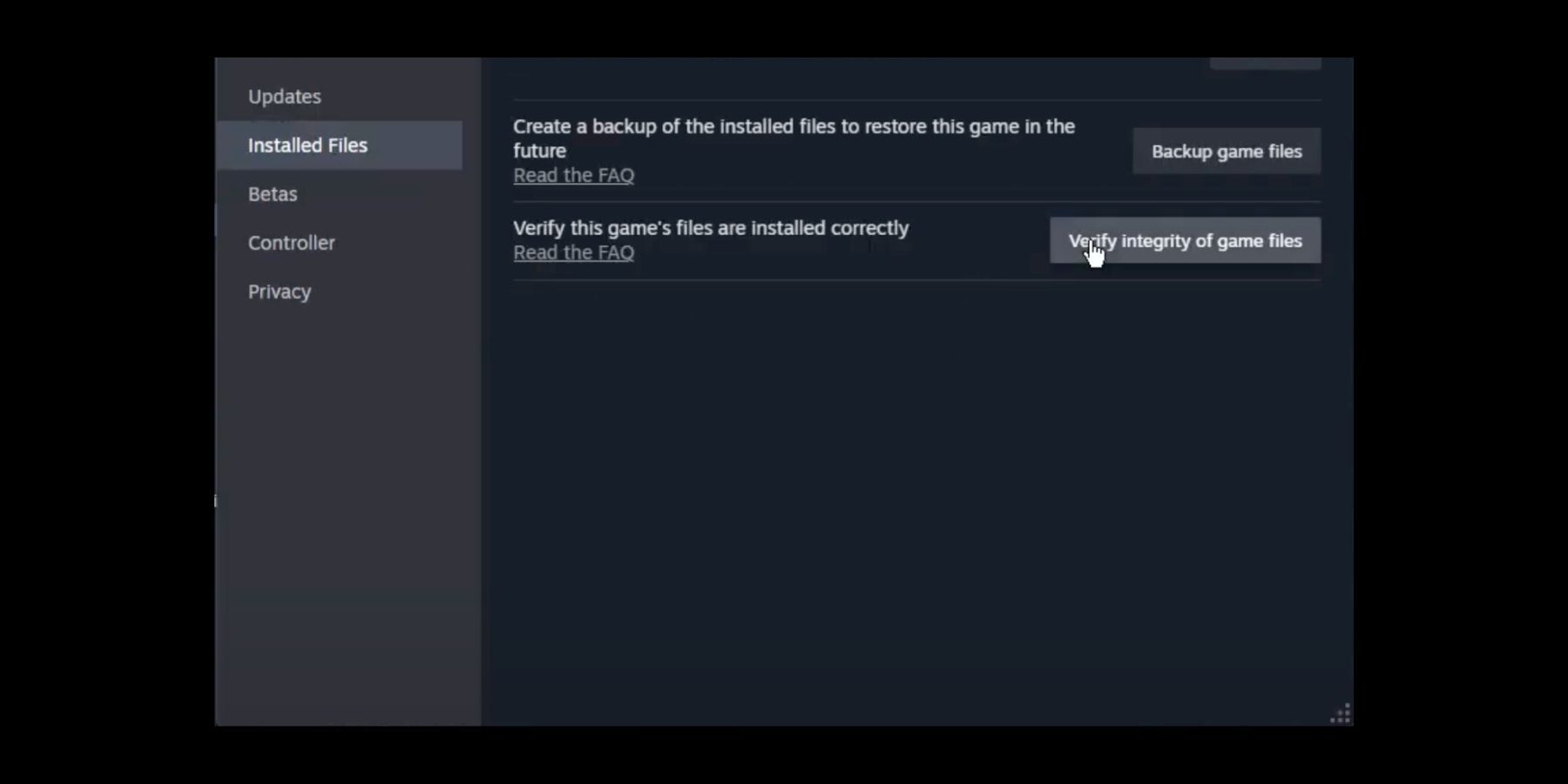
To resolve the “Connection Failed” issue on PC, follow these steps:
- Go to Steam's Library (accessible from the top navigation bar).
- Right-click on the game and select Properties.
- Navigate to Installed Files.
- Click on “Verify Integrity of Game Files.”
By initiating the verification process, Steam will compare the game checksums on your device with those on its servers. If any files are found to be corrupted or damaged, Steam will automatically replace them, resolving the issue. The duration of this process may vary depending on the user's network connection and the extent of damage.

How To Fix “Post Player Join Failed” On Xbox & PlayStation

For Xbox players, it's crucial to ensure that the NAT Type is Open to avoid encountering the "Post Player Join Failed" error when attempting to log into the game. Additionally, performing a hard reset on the console can help resolve issues like this. To do so, turn the Xbox off by holding its power button for ten seconds, unplug it for two minutes, then restart it and try joining the game again.
PlayStation players typically encounter this error less frequently. However, if they do experience it, they should first check their network connection. If possible, they can try switching to another network to resolve the issue.
Tips for Preventing Connection Failed Errors

To reduce connection errors in Fallout 76, follow these steps:
- Disconnect the PC controller before launching the game, especially if it's a third-party wired controller, as it may cause loading errors.
- Ensure that Fallout 76 is whitelisted in your PC's antivirus and firewall settings.
- Perform a hard reset of the modem/router by unplugging it for two minutes and then restarting it to resolve minor login issues.

Fallout 76

- Released
- November 14, 2018