


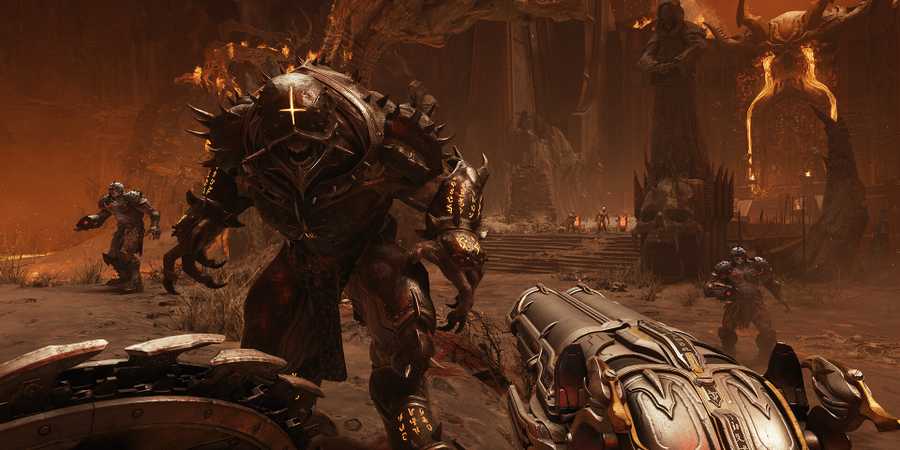
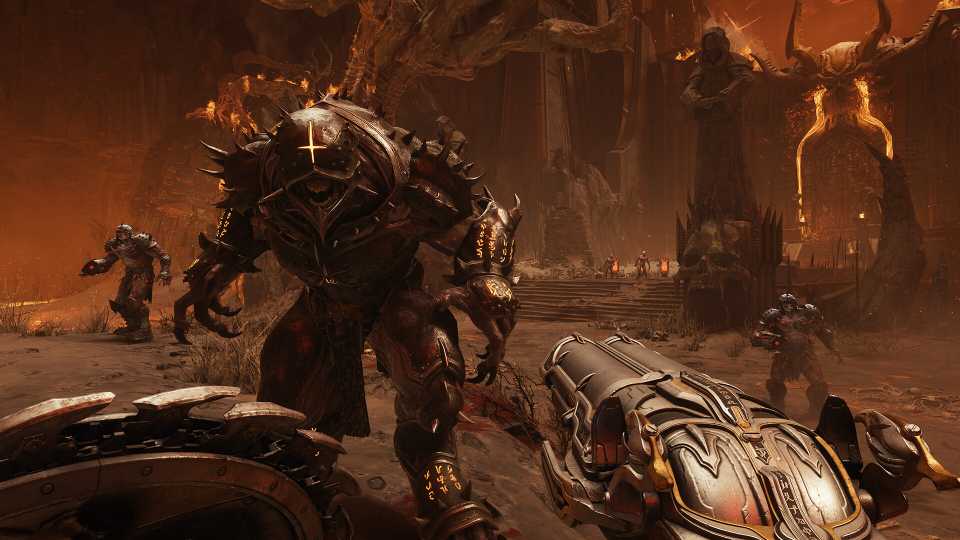
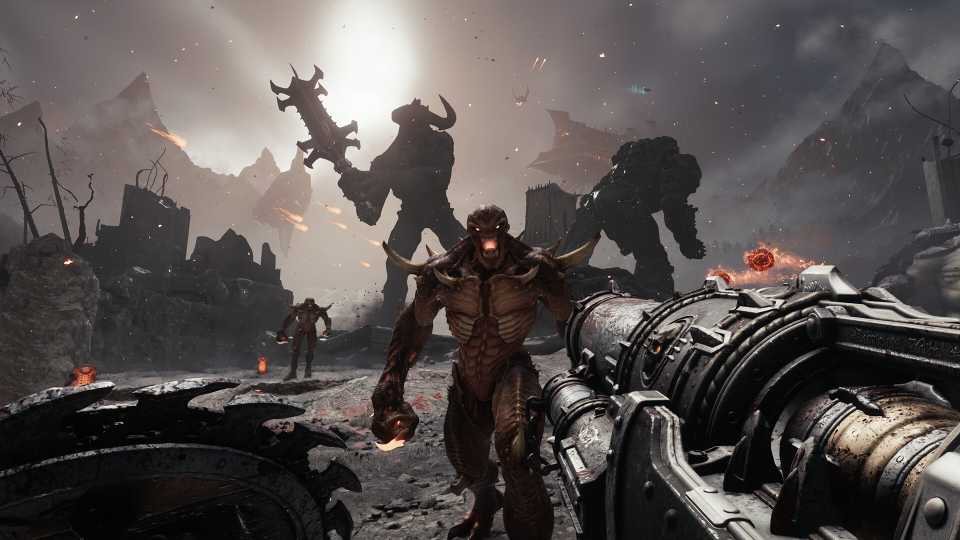
There's nothing more satisfying than hunting demons while performing brutal glory kills to style on them in Doom: The Dark Ages. Although the game runs buttery smooth on a range of hardware configurations, some technical issues may result in the game crashing or getting stuck on a black screen on launch. While these issues will be addressed and fixed with an upcoming patch sooner or later, here are some fixes you can try in the meantime to resolve them.

DOOM: How to Play the Games in Order
DOOM is one of the longest running video game franchises of all time. As such, some gamers may be unsure about the best order to play the games in.
How to Fix Doom The Dark Ages Crashing Issue on PC
There are different methods that players can employ to potentially fix the crashing issue that's plaguing Doom The Dark Ages. Unlike other games, where players receive an error screen, the situation is quite vague with Doom, as players either get a black screen or simply get sent back to the desktop. Let's check out some workarounds for this issue.
Verify Game Files
One of the most basic but effective methods to troubleshoot Doom The Dark Ages crashing is simply verifying your game files. Whether you've bought the game on Steam, Xbox App, or Battle.net, there's an option in the game's properties to verify the integrity of game files.
The process can take anywhere from a few minutes to several, depending on your storage drive. However, once it's complete, the software client will either redownload the missing/corrupted files or simply give you the all clear.
Reinstall the Latest GPU Drivers
AMD and Nvidia have released the latest GPU drivers ahead of launch, which contain several performance enhancements for Doom The Dark Ages. While these drivers are aimed at improving the game's performance and stability on your PC, they might be causing issues for some players.
It's recommended that players first completely uninstall the current drivers using a third-party utility like DDU (Display Driver Uninstaller). Once that's done, download a fresh driver from either Nvidia or AMD support websites, and install it. Once the installation is done, make sure to reboot your PC.
The latest Nvidia Driver for Doom The Dark Ages is 576.40. For AMD GPUs, players must have 25.5.1+ or higher drivers installed.
Tweak Game Settings & Use Borderless Window Mode
Doom The Dark Ages has a slew of graphical options that players can tweak to adjust the game's performance. Even if you have a high-end PC, some settings can cause the game to crash or display a black screen on launch.
If that happens, scale back some settings, including shadows, reflections, and texture quality options. You can also try disabling Frame Generation for the time being, as it's also causing crashes for some players at the moment. Once developers release a performance/stability patch for the game, feel free to crank the settings back up.
Disable Third-Party Software Overlays
Overlays are helpful utilities that let you use a particular application's feature in-game. However, some overlays can clash with Doom The Dark Ages, leading to a crash. It's recommended to disable any unnecessary third-party application overlays. Once you've done that, try playing the game for a while and test if the crashing or black screen issues have been resolved.


DOOM: The Dark Ages



-
 OpenCritic Reviews
- Top Critic Avg: 86 /100 Critics Rec: 95%
- Released
- May 15, 2025
- ESRB
- M For Mature 17+ // Blood and Gore, Intense Violence
- Developer(s)
- id Software
- Publisher(s)
- Bethesda Softworks


WHERE TO PLAY



- Engine
- id Tech
- Franchise
- DOOM
- Genre(s)
- FPS, Action, Sci-Fi & Fantasy
- Platform(s)
- PC, Xbox Series X, Xbox Series S, PlayStation 5
