


Joy-Cons are the main controllers of the Switch 2, and connect to the sides of the console to make it playable in handheld mode. Every Switch 2 comes with two Joy-Cons, though there are a lot of games that can be played with four and sometimes even more players at once.
While you can purchase two Pro Controllers or an additional set of Joy-Cons, you can also choose to sync your Joy-Cons from your Switch 1 to your Switch 2, making it much easier to have four controllers. Here's how to sync new Joy-Cons to your Switch 2, including your old ones from a Switch 1.

What's the Switch 2 Battery Life? (& How to Improve It)
The Switch 2 is a big upgrade in terms of graphical horsepower over the original Switch, but what about it's battery life?
How To Sync Joy-Cons To A Switch 2
Syncing Joy-Cons from a Switch 2 is very easy, as it only requires you to connect them to the side of your Switch. Once connected, those Joy-Cons will immediately sync to that Switch 2, even when they are later taken off and used. This method only works for Joy-Cons and requires you to put them onto your Switch, but you can also sync them wirelessly.
- On your home screen, scroll along the main menu to the, "Controllers" option.
- Select, "Change Grip/Order."
- Press the corresponding buttons on your controller or Joy-Con to sync to the Switch 2.

How to Get Zelda Switch 2 Upgrade Packs (BotW and TotK)
Both Breath of the Wild and Tears of the Kingdom have been given Switch 2 upgrade packs. Here's how players can get them.
How To Sync Switch 1 Joy-Cons To A Switch 2
Connecting your Switch 1 Joy-Cons is a lot like the process above, as you'll go to the Change Grip/Order menu in the Controllers setting. While the buttons at the top of the screen will usually indicate what buttons you need to press usually, you'll only want to press them for a second to make your Joy-Con start searching for a Switch to connect to. After pressing the button, the green light will move across the four squares along the side of your Joy-Con, and just to the left of SR will be a small button. While the green light is still moving, hold down that small circular button to make that Joy-Con keep searching but for a new Switch.
As long as your Switch 2 is the only nearby console searching for a controller, your Joy-Con will connect to the Switch 2, and the controller icon will match that of an old Joy-Con. The only important thing to remember is that old Joy-Cons can't be charged with a Switch 2, so you'll need either your old Switch 1 or a different charging method if you choose to use those Joy-Cons often.
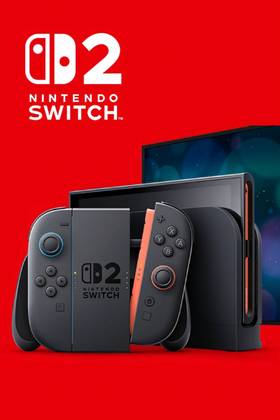
- Brand
- Nintendo
- Operating System
- Proprietary
- Storage
- 256GB internal / MicroSD
- Resolution
- 1080p (handheld) / 4K (docked)
- App Store
- Nintendo eShop
- Wi-Fi
- Yes