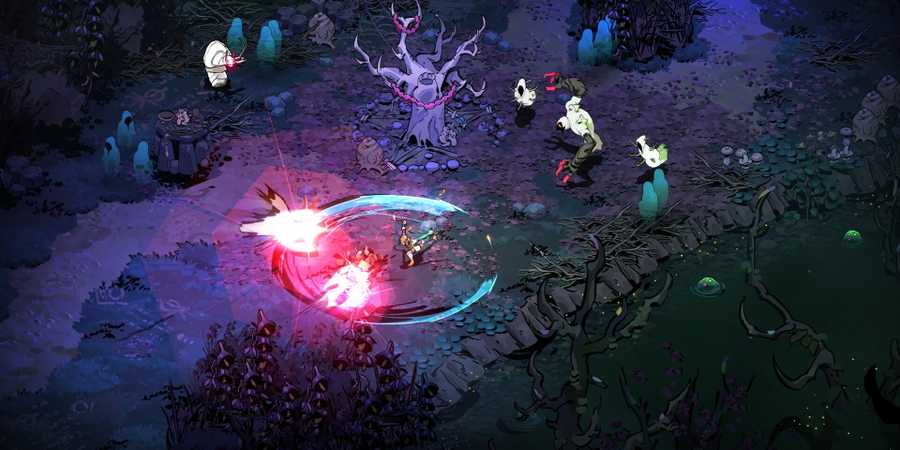
Hades 2 is still in early access but has already received a lot of positive feedback from the community. Still, considering that it is in early access, fans often encounter crashing issues, which negatively affects the gameplay experience. To avoid this, you need to know how to fix Hades 2 crashing issues, and we have some useful tips that you can use.

Hades 2: How To Get Pearl
Before players can get a Pearl in Hades 2, they must get through the second stage and beat one of the game's most unique boss fights.
Hades 2: How to Fix Crashing Issues

These crashes can occur for a number of reasons, from outdated software to conflicts with other programs. So, let's dive into some specific solutions to get you back on track.
Targeted Debugging
The first and most effective method was proposed by the game developers themselves. All you need to do is set up targeted debugging, and here's how to do it:
-
First of all, install Graphics diagnostics tools. To do this, follow the next steps:
- Open the Settings menu on your PC.
- Go to the System tab.
- Among the listed options, find and interact with the one that says Optional Features.
- Once the new menu opens, find the “Add an optional feature” option and click on the “View features” button next to it.
- When the new menu opens, you will see an input field and several other options. In the input field, type Graphic Tools, and check the box next to the option when you find it.
- Once you're done, click the Next button at the bottom of the menu.
- Lastly, when the next menu opens, click on the Add button and wait for the download to finish.
- Once it's done, you'll need to disable all overlays, including GeForce and Steam.
- Next, go to the Steam Library and find Hades 2 among the list of other games.
- Right-click on the title of the game, and in the drop-down list, interact with the Properties option.
- In the new menu, you will see the Launch Options option and an input field below it. Now, copy and paste the following command without quotes into the input field: “/DebugApiValidation=true”.
- Finally, launch the game and see if the error occurs again.
If the problem is solved, don't forget to disable the debug option. If not, contact support and explain your problem, and don't forget to mention that you've already tried the above method. In addition to this basic method, you can also try the more common ones described below.

Hades 2: How to Get G Rock (Glassrock)
Players who are search for Glassrock in Hades 2 can find details on the location of that important Reagent in this short guide.
Run Hades 2 as Administrator

Sometimes, games may require administrator permissions to access certain system resources. Running Hades 2 as an administrator can fix crashes caused by permission issues. To do this, just right-click on the game icon and find and interact with the “Run as administrator” option.
Update Your Graphics Drivers
Outdated graphics drivers can sometimes lead to crashes and other graphical issues. Keeping your drivers up-to-date ensures your computer can communicate effectively with your graphics card, potentially resolving crashes related to this. To fix this, download the appropriate program for your graphics card and check for the latest drivers.
Disable Your Antivirus
In rare cases, antivirus software might mistakenly flag Hades 2 as a threat, causing crashes. To see if this is the culprit, try temporarily disabling your antivirus software while launching the game. Remember to re-enable your antivirus software after testing to ensure continued protection.

Hades 2
- Released
- September 25, 2025



WHERE TO PLAY




- Developer(s)
- Supergiant Games
- Publisher(s)
- Supergiant Games
- Platform(s)
- Nintendo Switch, Nintendo Switch 2, PC