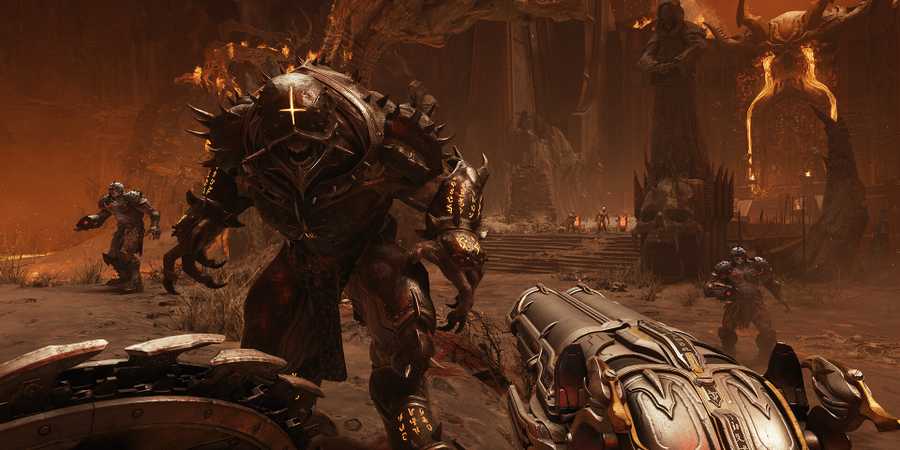
DOOM: The Dark Ages is a phenomenal entry to the beloved FPS franchise, and while it sets new highs in terms of gameplay, it also comes with a few issues that players might have trouble with. Apart from the game requiring an RTX-enabled GPU, some PC players in particular have been having issues with the game being literally too dark.
While DOOM: The Dark Ages may be visually impressive, some players may have noticed that the in-game lighting may not be working as intended. If this is an issue for you (or if you're having a different kind of brightness-related issue), here's a quick guide to help you patch things up.
DOOM: The Dark Ages Brightness Fix (~6GB VRAM GPUs)
Players who are trying to play DOOM: The Dark Ages with a graphics card that has 6GB of VRAM will likely have issues with the game's environments being too dark (as made immediately apparent in Chapter 1). More specifically, the game forcibly disables Ray Traced Global Illumination for GPUs that don't meet the minimum 8GB VRAM requirement.
If you have a 6GB VRAM GPU, try installing OptiScaler. It basically tricks the game into thinking that you have more than 6GB of VRAM, thus turning RTGI on. This results in a brighter world with less visual artifacting, and since your forcing your system to do more work, expect your frame rate to dip a bit.
This specific OptiScaler-derived component is configured for 6GB VRAM GPUs. If you have less than this amount, try a different config or manually adjust OptiScaler by downloading the one from GitHub. TheBestWarGames is not responsible for any third-party content.
To install this mod/fix, simply download the files and paste them into your game's install directory, which you can find by doing the following:
- For Game Pass users, select the game from Xbox app, then click on the "..." Button next to the "See in Store" button. Select Manage, then go to the Files section. Click the Browse button to open an Explorer window directly to your install directory.
- For Steam users, right-click on DOOM: The Dark Ages on your library, then go to Manage → Browse local files.
Make sure that the OptiScaler files are in the same folder where DOOMTheDarkAges.exe is located. Once installed, you may want to optimize your graphics settings to compensate for potential FPS loss.
Adjusting Gamma and HDR Settings

If you're not having any issues regarding RTGI and VRAM, you can adjust your game's brightness by going to the Settings menu and adjusting your Gamma under the Display Calibrations section of the Video screen.
As for what value you set Gamma to, it varies from case to case. If the default value is too dark for you, then 1.25 Gamma should be enough. You can raise this all the way up to 1.50, but in doing so, outdoor and well-lit areas may look more awkward than intended.

DOOM: The Dark Ages

- Released
- May 15, 2025


WHERE TO PLAY



- ESRB
- M For Mature 17+ // Blood and Gore, Intense Violence
- Developer(s)
- id Software
- Publisher(s)
- Bethesda Softworks
- Engine
- id Tech
- Franchise
- DOOM
- Genre(s)
- FPS, Action, Sci-Fi & Fantasy
- Platform(s)
- PC, Xbox Series X, Xbox Series S, PlayStation 5