


Upgrading to a Switch 2 not only gives you access to a lot of new features and games, but also allows you to pick up right where you left off with games from your Switch 1 if you want. Even for games you haven't played in a while, it's important to protect your old save files in case you ever want to go back and play them.
It's recommended that one of the first things you do with your new Switch is to transfer over your data from your Switch 2, letting you pick up right where you left off with your older games while still giving you the ability to play newer ones. Here's how to transfer over your old Switch 1 data to your new Switch 2.

6 Most Surprising Ports For The Nintendo Switch 2
Nintendo proved all the doubters wrong with these surprising ports which are available for the Switch 2.
How To Transfer Data From Switch 1 To Switch 2
Before getting started, make sure your Switch 1 is up to date with any current software updates.
Plug in your new Switch 2 using the AC power adapter and follow the on-screen prompts to get your Switch 2 set up for the region you live in, language, wifi, and get the most recent software update to make sure the console is working. After that, you'll be given the option to transfer your old Switch 1 information over to your new Switch 2, select, "Start System Transfer" to get started.
If you use a microSD, you can simply move it from your old Switch to your Switch 2 during this next screen to speed up the process; otherwise, select skip to keep going. You'll next need to connect your Switch 2 to your Nintendo account, which can be done on the system itself or using a QR code that will appear on screen.
After connecting your Nintendo account to your Switch 2, it's time to start the transfer. Plug your Switch 1 and Switch 2 into a power source using the AC power cords, and place your Switches next to each other. In your Switch 1, follow the steps below to start the transfer:
- Open System Settings (the gear icon)
- Scroll down to System at the very bottom.
- Scroll down to "System Transfer to Nintendo Switch 2" towards the bottom of the menu.
After clicking through the confirmation screens, you'll get a list of game save data that is getting transferred over, not just copied. These save profiles will be deleted from your Switch 1 and moved to your Switch 2; otherwise, all other data will just be copied over. Start the download, and all data will be moved over to your Switch 2. Next, you'll be given the option to transfer screenshots and videos from your Switch 1 to your Switch 2, but this requires a microSD card to download everything onto, then physically transfer it over to your Switch 2.
After completing all this, your Switch 2 will have all your save data, and any games you currently have on your Switch 1 will start downloading onto your Switch 2. It's important to know that this does not wipe or factory reset your Switch 1, so you'll need to do that separately.
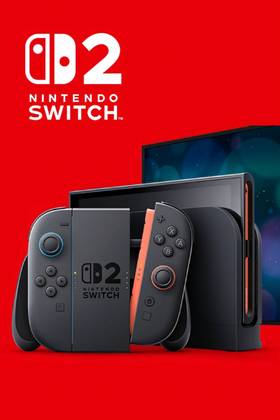
- Brand
- Nintendo
- Operating System
- Proprietary
- Storage
- 256GB internal / MicroSD
- Resolution
- 1080p (handheld) / 4K (docked)
- App Store
- Nintendo eShop
- Wi-Fi
- Yes