


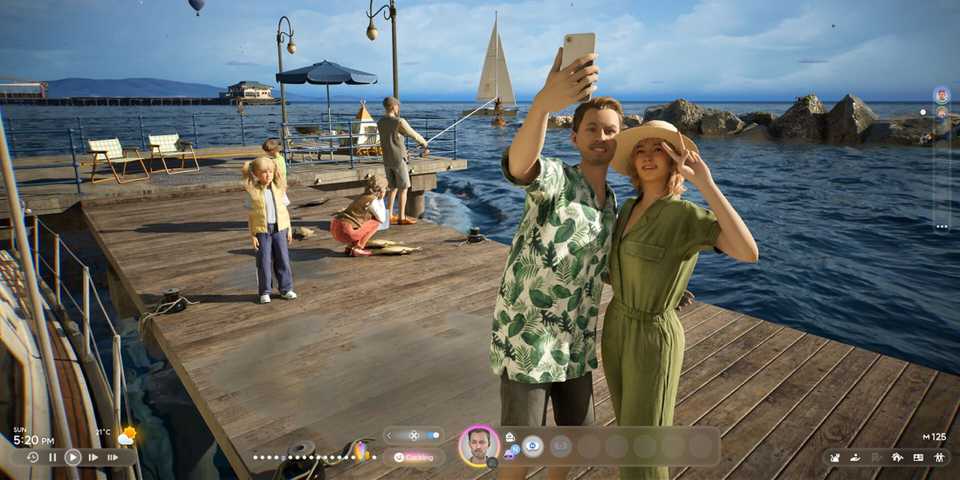
Krafton’s InZoi has gained attention for its detailed graphics and extensive customization options that bring a new level of realism to the life simulation genre. From facial features and clothing to home design and even city editing, players have the freedom to shape their virtual world according to their preferences. In fact, InZoi has a built-in platform called Canvas that lets you share your lot designs with other players and even download their creations to use in your own cities.

InZoi: How to Get a Job
Jobs are the primary source of income that enable your Zois to purchase items and fulfill their needs. Here’s how to get a job in InZOI.
How To Access & Use Canvas in InZOI
When you hit the Canvas button, you’ll be taken to a prompt pop-up window. To access Canvas and browse, download, and upload creations, you must either register or log in to your Krafton account. To do so, you can directly enter your Krafton account credentials or use the QR code that appears on the screen.
Next, make sure to edit your profile and change your name to something that resonates with you. This name will be visible to other players when you share your creations, so choose wisely. Once that’s done, you’re free to upload your own creations to Canvas or download content created by other players.
You can access Canvas by clicking the blue icon at the top right of your screen. You can also access it through the game’s start menu or by visiting their official website.
How To Upload Creations in InZOI
Uploading your creations to InZoi’s Canvas platform is a great way to share your unique designs with the community. First off, you need to create your content. This involves designing Zois in the Character Studio, building houses or rooms in Build Mode, or creating custom furniture, etc.
To upload and share your creations, open the Canvas platform by clicking on the “Upload to Canvas” button in the relevant menus. You'll be prompted to provide information about your creation, such as a title, description, and a picture. When you’re done, hit the Upload button to share your creations.
You can choose to upload the entire Zoi, just the face, or just the outfit.
How To Download Creations in InZOI
If you want to save yourself some time and effort, you can download pre-made creations from Canvas too. To download content created by other InZoi players, open Canvas and click on ‘Categories” at the top of the browser page.
This is where you can view all the downloadable content, such as Zoi and lot designs, and various customization options like faces, outfits, rooms, and furniture. You can also find content by viewing the most popular creations of the day, week, or month.
If you like something, simply click on it and hit “Download”. Then, return to InZoi and follow the steps below to access your downloaded content:
How to Add a Downloaded Zoi To Your City
- Create a new family member.
- Click "Presets” in the Character Studio.
- Find the Zoi you downloaded. It should be marked with a purple Canvas icon. You can find the presets for downloaded Zoi faces or outfits in their respective customization menus.
- Click on the custom creation and save your new Zoi.
How to Use Downloaded Properties, Rooms, and Furniture
- Open "Build Mode."
- Find downloaded properties in "Property Presets," rooms in "Room Presets," and furniture in "Crafts."
- Downloaded items are marked with the purple Canvas icon.
- Click on an item to place it in your home.


InZOI

-
 OpenCritic Reviews
- Top Critic Avg: 77 /100 Critics Rec: 80%









WHERE TO PLAY


- Genre(s)
- Life Simulation
