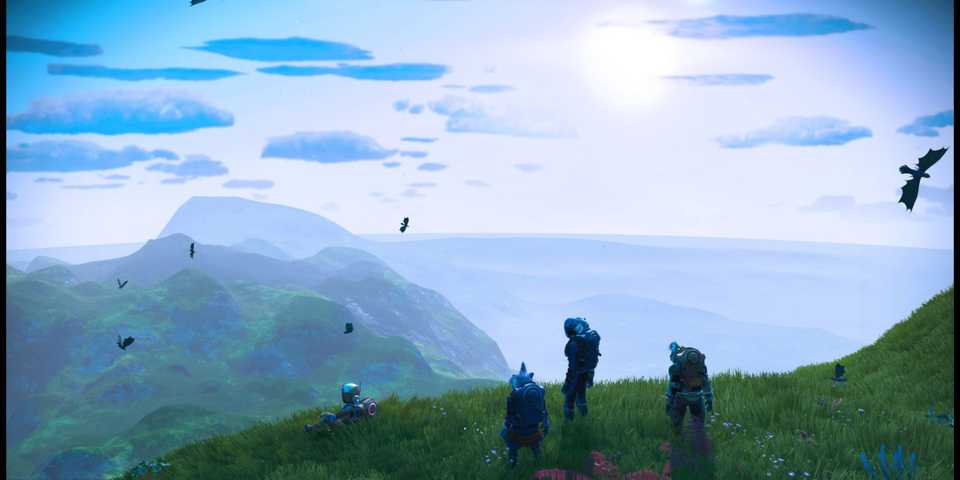
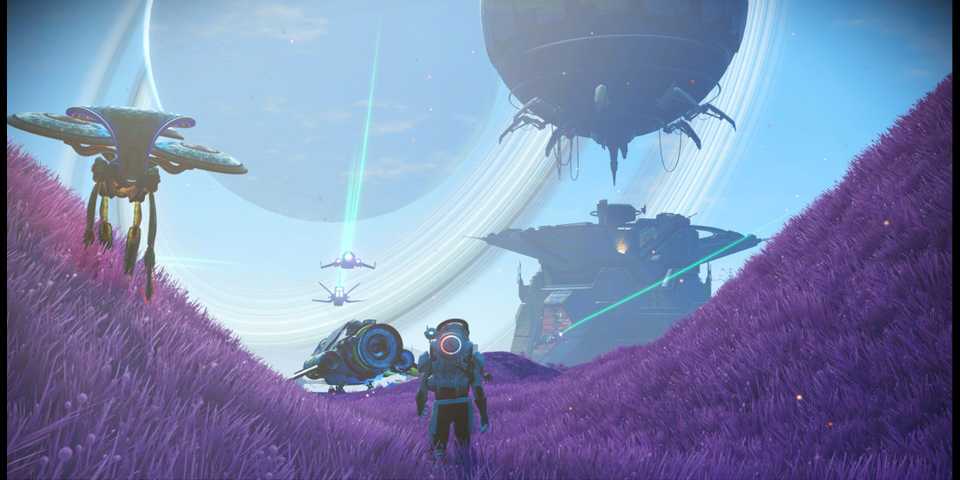
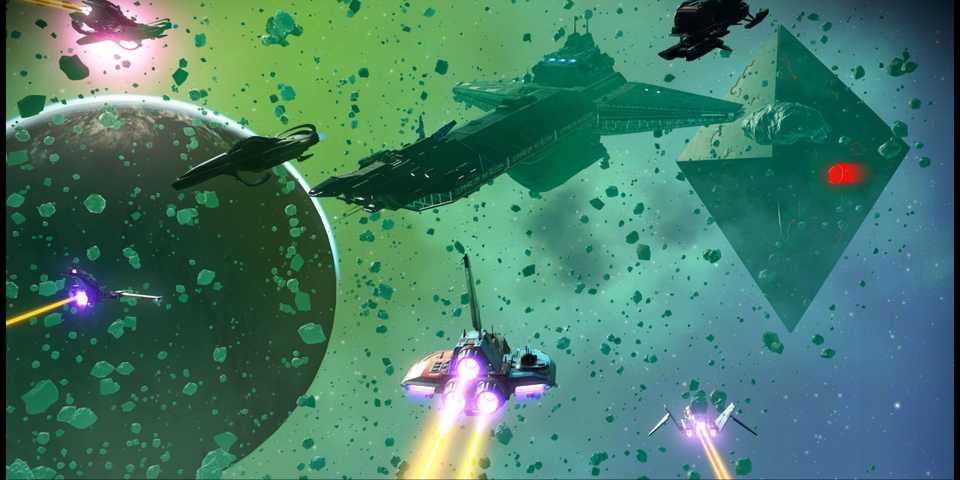
No Man's Sky has some of the most beautiful plants and interesting creatures for players to discover, but players could not share these discoveries with others for some time after the game's launch. Thanks to Photo Mode, players can now capture everything of interest and show off their photos to friends and strangers alike. However, accessing photo mode isn't very straightforward.
Photo Mode wasn't available in No Man's Sky until the Pathfinder update. Before then, players had to rely on screenshots from their computers or other devices to share pictures of their bases, planets, and other discoveries. The release of Photo Mode came with many features, too. Players have a selection of different effects and options to take the perfect photo. For those looking to let their sci-fi photography skills shine, this guide has all the details on how to access and use Photo Mode in No Man's Sky.

No Man's Sky: How to Find Paradise Planets
Locating certain planets in No Man's Sky can be difficult. For those unsure on how to find Paradise Planets, this guide provides the answer.
How To Use Photo Mode in No Man's Sky

Players can find the Photo Mode option in their tool belt. On a controller, players need to press the down button on the D-pad, and then scroll all the way to the right. The icon for Photo Mode is a camera.
On a keyboard, players must press the "X" key, then scroll upwards with the mouse until they hover over the camera icon. Clicking on the camera will enter Photo Mode.
When players are in Photo Mode, their bodies are still susceptible to any dangers around them. Sentinels, aggressive creatures, and storms will still affect the player even if they're in Photo Mode. The player won't be able to tell, however, so it's best to click out of Photo Mode now and then to ensure safety.
Once in Photo Mode, players will notice they have several different options and settings to help them take the perfect photo. When players are done using Photo Mode, they can return to normal play by pressing the "O" key on a DualShock controller or the "B" key on an Xbox controller. On PC, players can exit Photo Mode by right-clicking with their mouse.
How To Adjust Effects in Photo Mode in No Man's Sky

One of the reasons why No Man's Sky has an amazing Photo Mode is that it has different options to customize the player's screenshots. For example, suppose you have the perfect opportunity to take a photo of a unique creature, but the sun isn't out. In that case, you can adjust the sun's position in Photo Mode to ensure that the photo comes out bright and colorful. Without this feature, players would have to wait either until the sun rises or take a picture in the dark, neither of which are ideal options.
Players can also determine how much fog or bloom they want in the picture and play around with the depth of field and field of view. This allows players to take incredible shots of beautiful landscapes in No Man's Sky.
There are also filters that players can apply to their photos to boost certain colors or create mood lighting. These filters include:
- Vintage
- Collapse
- Emral
- Chrono
- Vapour
- Soft Pulse
- Synth
- Revisti
- Mosaic
- Frost
- Aliora
- Hyper
- Xeno
- Deepend
- Simulation
- Pikisi
- Unsleep
- Haze
- Phono
- Scream
- Oil Rain
- Inverse
- Lattice
- Shimmer
Refer to the video above to see all these filters in action!
Finally, players can also take dynamic photos by using the Gestures action in Photo Mode. To do so, players will need to access the tool belt menu again. The Gestures option is right next to the Photo Mode option. Click it, and then find the emote that you want to capture. Whether you want to show off with a superhero landing emote, thumbs up to your friends, or just take a tranquil photo of yourself fishing by a lake, plenty of creative options are available.
At this point, players must move fast to capture the photo with the Gesture, since emotes only last for a few seconds. Quickly back out of the Gesture menu, then navigate to Photo Mode. Once players are in Photo Mode, they can take the time to line up the perfect shot since they've basically paused the emote.
Players can also assign the Gestures menu and Photo Mode to specific keys on PC, making the switch between the two incredibly easy. Press and hold the CTRL key and then a number (0-9) to assign the menu to a hotkey.
By combining Gestures with Photo Mode, players can take some fun and memorable photos in No Man's Sky.


No Man's Sky



-
 OpenCritic Reviews
- Top Critic Avg: 71 /100 Critics Rec: 36%
- Released
- August 9, 2016
- ESRB
- T for Teen: Fantasy Violence, Animated Blood
- Developer(s)
- Hello Games
- Publisher(s)
- Hello Games





WHERE TO PLAY