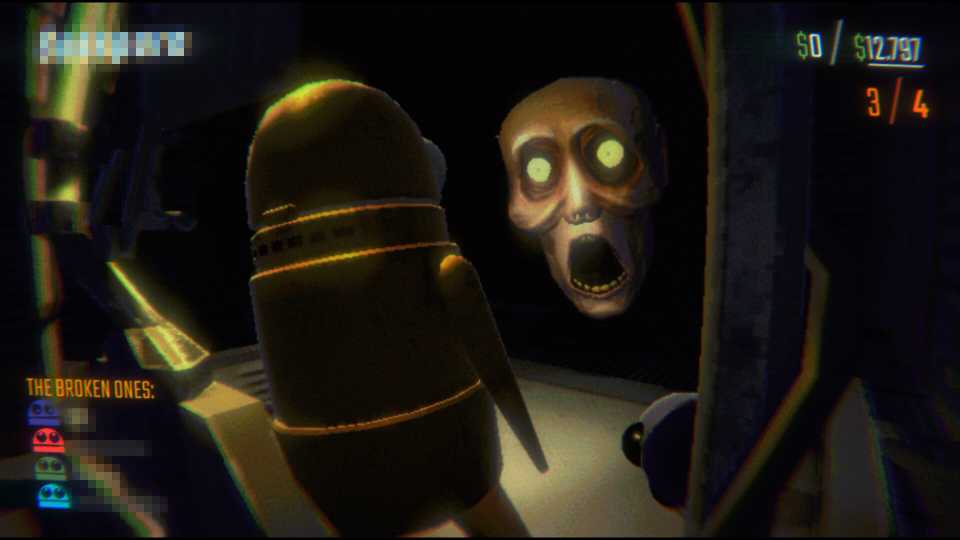
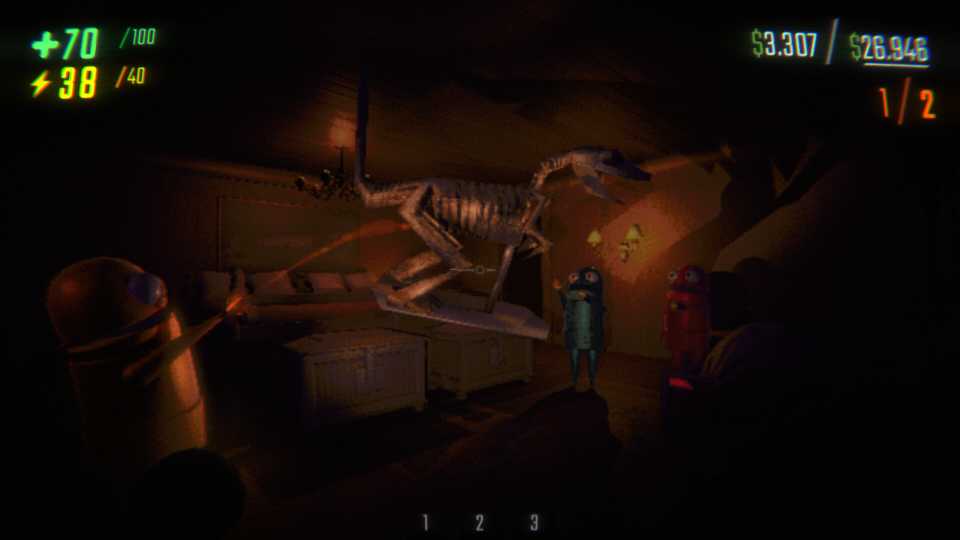
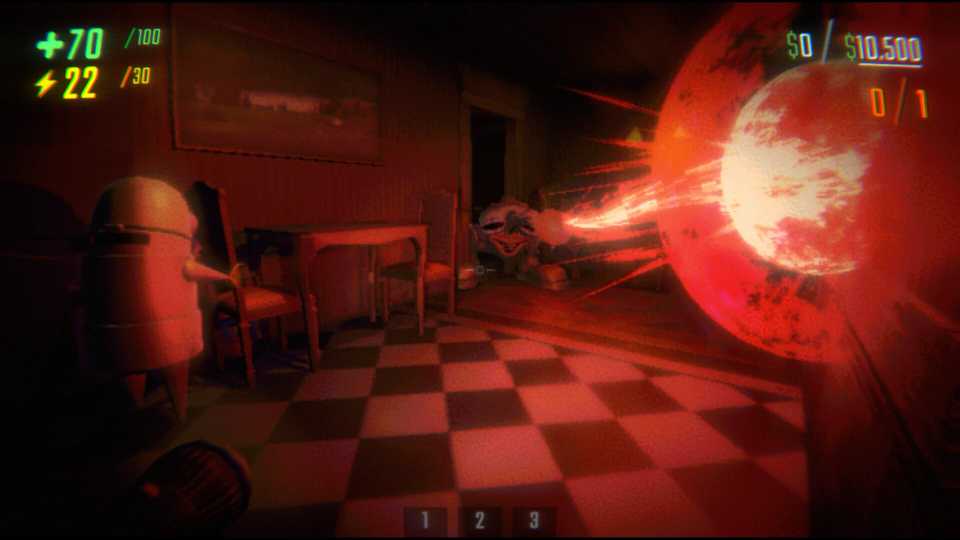
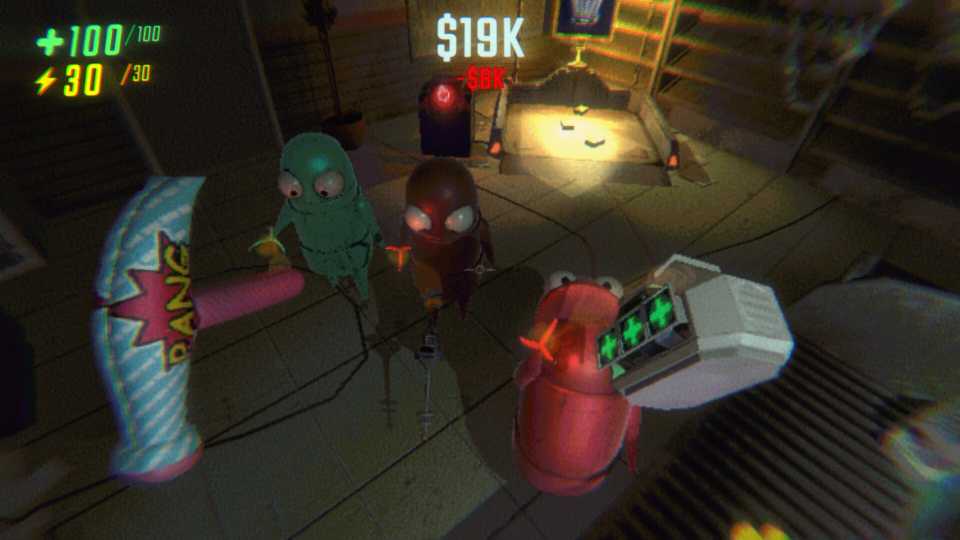
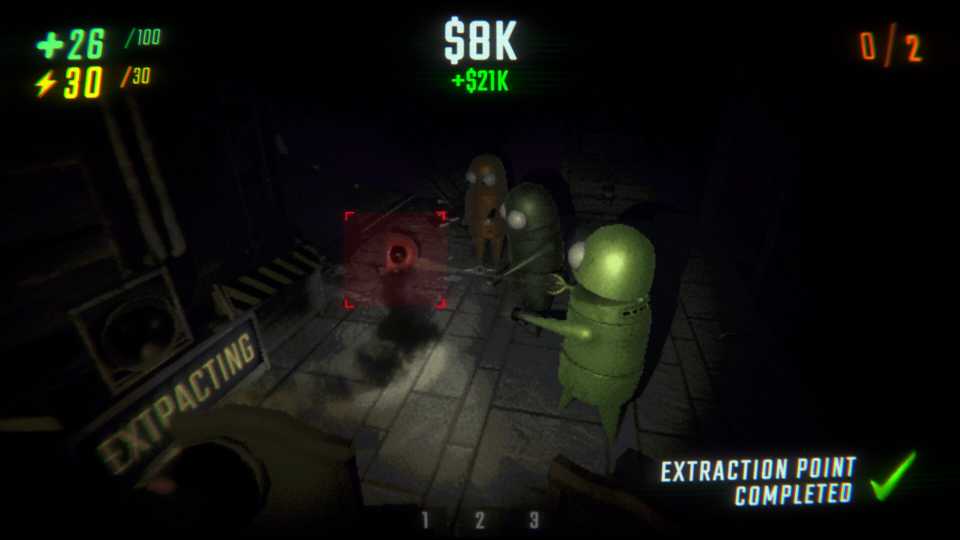
Despite still being in early access, REPO has exploded into the gaming world and become a smash hit. Since it's still in development, certain features are currently missing. One such feature is the ability to play the game with a controller, which means you're out of luck if you want to control a funny robot but hate using a mouse and keyboard.
Controllers are not supported by REPO, but that doesn't necessarily mean that you can't play the game with one. There is a workaround that will allow you to repossess items from the various spooky levels while using traditional buttons and thumbsticks.

R.E.P.O.: Valuables with the Highest Sell Value
If players want to please the Taxman in R.E.P.O., they are going to need to bring home the most expensive valuables that they can find.
How To Play REPO With A Controller

Right now, the only place to purchase and play REPO is on Steam. This is great if you want to hook a controller up to the game since Steam has a special feature called Steam Input. What this does is allow you to set up a controller with games that don't normally support controllers.
All you need to do is make sure your controller is connected to your PC. Then, go to REPO in your game library, and there should be a controller icon on the upper right side of the page. Click on that, and then click "Enable Steam Input." This will now map the functions of the mouse and keyboard to your controller. There may be community control layouts you can use that will automatically configure the controls, but if you can't find a layout you like, you can always manually go into the controller settings and adjust the controls to work however you like.
Best Controller Layout For REPO

Everyone will have a different preference for controller layouts in REPO, but here's what we think is the best layout if you're planning on playing with your favorite gamepad. You can adjust these settings however you like if something doesn't feel right to you:
This layout applies to Xbox-branded controllers but can be adjusted for any other kind of controller.
|
Action |
Keyboard/Mouse Mapping |
Controller Mapping |
|---|---|---|
|
Jump |
Space Bar |
A Button |
|
Use/Interact With Item |
E Key |
X Button |
|
Tumble |
Q Key |
B Button |
|
Grab Item |
Left Mouse Click |
Right Trigger |
|
Rotate Item |
Right Mouse Click |
Left Trigger |
|
Push Items Away From You |
Mouse Scroll Up |
RB Button |
|
Pull Items Toward You |
Mouse Scroll Down |
LB Button |
|
Movement Controls |
W, A, S, D Keys |
Map each directional function to the Left Thumbstick |
|
Sprint |
Shift Key |
L3 Button or Left Thumbstick Click |
|
Mouse Controls |
Mouse Movement |
Right Thumbstick |
|
Crouch |
Control Key |
R3 or Right Thumbstick Click |
|
Map |
Tab Key |
View Button |
|
Menu |
Escape Key |
Menu Button |
|
Inventory Slots |
1,2,3 Keys |
Map these functions to the Directional Pad |
Some additional notes on this controller layout:
- This layout leaves the Y button open, so you can map a command to that.
- If you're using an Xbox Series X/S controller, it has an additional button called the Share Button that can be mapped.
- This layout does not take into account certain commands such as text chat or push-to-talk. These functions can be applied to any part of the controller too.


- Released
- February 26, 2025
- Developer(s)
- semiwork
- Publisher(s)
- semiwork
- Engine
- Unity
- Multiplayer
- Online Co-Op