


There's nothing cozier than a well-decorated, well-furnished hobbit home – at least, as long as you're not one of those tall folk who are likely to bump their head on the door. Players can engage with this core aspect of the cozy life of Hobbits in Tales of the Shire with the Home Decoration system.

How To Change Appearance & Clothes in Tales of the Shire
To change your outfit and alter your character's appearance in Tales of the Shire, you must first find the Wardrobe.
As you unlock more furniture by raising your Friendship with various characters of Bywater or by shopping at Fosco's, you will unlock more ways to create the hobbit hole of your dreams. But first, you have to understand how to open Home Decoration mode, how to place and move furniture, and how to store and withdraw furniture in Tales of the Shire.
Tales of the Shire Decoration & Furniture Customization, Explained

How To Open Furniture Editor Mode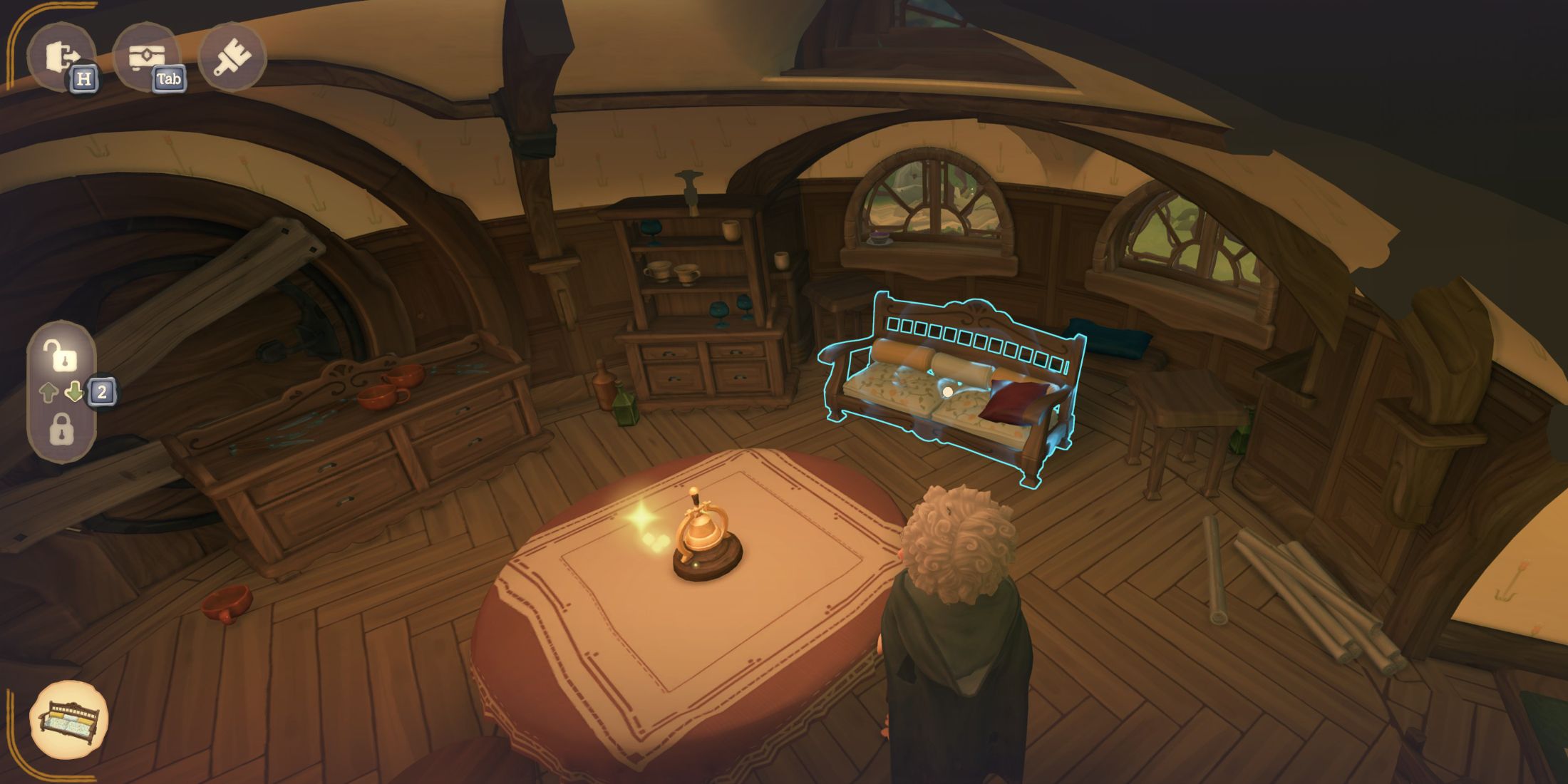
To start your life in the world of The Lord of the Rings and decorate your home in Tales of the Shire, walk into any room and hold down the select button (the left button between the analog sticks of your controller of choice). A pop-up will appear that briefly describes the Home Decoration system, then you're free to customize your home as you see fit!
To exit Home Decoration mode, simply hold down the select button again.
How To Place & Move Furniture In Tales of the Shire

To place furniture in Tales of the Shire, you must first choose the piece of furniture you want to put down. To do this, press Y or △ while in Home Decoration mode to access your Storage. In this menu, you can select from a variety of customization and storage tabs, including Furniture, Decorations, Meals, and Garden.
Meals are typically only used during a Shared Meal, while Garden items can only be placed outside.
Open the Furniture or Decorations tabs, then scroll through the sub-tabs to see all of your available furniture. Select the piece you want to place, which will exit out of the menu and let you choose a spot for it.
To move existing furniture, simply move your reticle over a decoration until it glows blue, then press A or X to select it.

Tales of the Shire: How to Get a Fishing Rod (& How To Fish)
To get a fishing rod and start fishing, Tales of the Shire players must follow the main quest until they meet Old Noakes.
With the furniture selected, move the camera to preview where it will be placed on the ground (or on the wall, for some decorations). Press A or X to confirm your placement.
To rotate furniture, press RT/LT or R2/L2 while selecting it. You can also press X or square to enable Rotation Snapping, which will snap the furniture to pre-determined rotation points.
Unfortunately, you cannot rotate items vertically, only horizontally.
How To Store Furniture In Tales of the Shire
To store furniture, Tales of the Shire players must open up Home Decoration mode, then walk over to and highlight the piece of furniture that is to be put away.
You do not need to select a piece of furniture to store it – just move your reticle over the item until it glows blue, then press ↓ on the D-pad. It will automatically be added to your Storage, ready to be placed elsewhere.

Tales of the Shire: A The Lord of the Rings Game

- Released
- July 29, 2025



WHERE TO PLAY





- Developer(s)
- Wētā Workshop
- Publisher(s)
- Private Division
- Franchise
- The Lord of the Rings
- Number of Players
- 1
- Platform(s)
- PlayStation 5, PlayStation 4, Xbox Series X, Xbox Series S, Nintendo Switch, PC
