


Zelda Notes is a service that is intended to enhance players' experiences with The Legend of Zelda: Breath of the Wild and The Legend of Zelda: Tears of the Kingdom. More specifically, Zelda Notes gives players access to new dialogue, to medals that they can earn by performing a variety of actions, and more. Setting up and using Zelda Notes for The Legend of Zelda: Breath of the Wild and The Legend of Zelda: Tears of the Kingdom can be a bit confusing, though, and this guide will walk players through the process.
Zelda Notes cannot be used with the original Switch versions of BotW or TotK.

Zelda: Tears of the Kingdom - The 10 Best Armor Sets (& How to Get Them)
Finding the best armor TotK has to offer can have a huge impact on the player's overall experience, both when it comes to difficulty and enjoyment.
Zelda Notes Requirements
There are three requirements for using Zelda Notes, and they are as follows:
- Owning a Switch 2 Edition of The Legend of Zelda: Breath of the Wild or The Legend of Zelda: Tears of the Kingdom. Players who do not own copies of these games for the original Switch console can purchase digital versions of the Switch 2 Editions through the Nintendo eShop, and there are physical versions available as well. Players who do have copies can simply upgrade the Zelda games to the Switch 2 Editions through the eShop for $9.99.
- Having access to a smart device that can remain connected to the internet or a cellular network when using Zelda Notes.
- Having the ability to play the Zelda game while the Nintendo Switch 2 console is connected to the internet.
How to Use Zelda Notes
Play the Switch 2 Edition of BotW or ToTK While Connected to the Internet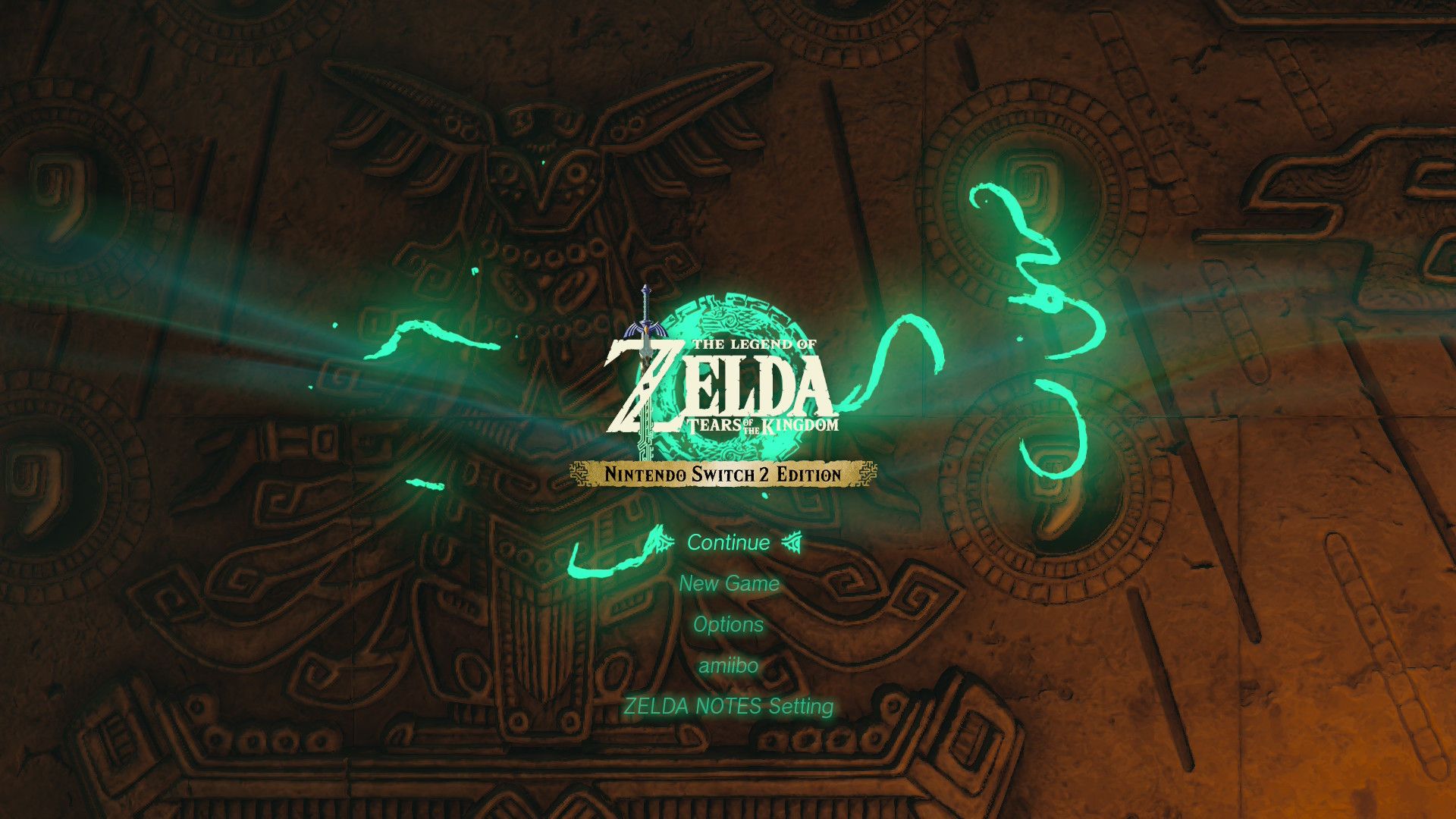
After meeting the requirements for using Zelda Notes, players should make sure that their Switch 2 console is connected to the internet and launch the Switch 2 Edition of the Zelda game that they will be playing. This action will make it possible to open the associated Zelda Notes service within the Nintendo Switch App.
Download the Nintendo Switch App
Players should download the Nintendo Switch App to their smart device, open the app, and login using the Nintendo Account that is attached to the user account on their Switch 2 console. Players can find the Nintendo Switch App in the App Store and on Google Play, and they can also generate a QR code that leads directly to the download by taking these actions:
- Open the Switch 2 Edition of The Legend of Zelda: Breath of the Wild or The Legend of Zelda: Tears of the Kingdom on your Nintendo Switch 2 console.
- On the Title Screen, select Options and set Zelda Notes to "enabled."
Open Zelda Notes in the Nintendo Switch App
Once a player has set up the Nintendo Switch App on their smart device, they will find a "Game-Specific Services" category on the app's home screen. A Zelda Notes icon can be found within that category, and clicking on it will bring players to a screen where they can choose either Tears of the Kingdom or Breath of the Wild, provided that the smart device is connected to the internet or a wireless network. Players should then simply click on the game that they will be playing to be taken to a screen from which they can access all the service's features.
Again, players must open the Switch 2 Edition of the game while their Switch 2 console is connected to the internet in order to access Zelda Notes. Players who have not performed that action will be taken to a summary of the service's features, rather than to the features themselves, when choosing Tears of the Kingdom or Breath of the Wild through the Nintendo Switch App.
Set Zelda Notes to 'Enabled' in BotW or ToTK
If a player has not already, they should take this opportunity to set Zelda Notes to 'enabled' within Tears of the Kingdom or Breath of the Wild. This can be done in several ways, and here is one of them:
- Open the Switch 2 Edition of The Legend of Zelda: Breath of the Wild or The Legend of Zelda: Tears of the Kingdom on your Nintendo Switch 2 console.
- Load a save.
- Open the menu, navigate to the Systems tab, and select Options.
- Set Zelda Notes to "enabled."
Start Using Zelda Notes' Features

Players can now start using Zelda Notes' features, including item sharing, daily bonuses, and more. Notably, players should find that many of the actions they have performed on the save file they are using have populated the stats within the My Play Data feature, though there is one important caveat: some of the actions that were performed prior to the release of the updates that immediately preceded the Switch 2's launch are simply not tracked. For example, weapons, materials, and rupees that were collected before those updates were not tracked, and players may find that those stats are at zero the first time they access My Play Data.
It is also very important to mention that the Switch 2 must be connected to the internet to access many aspects of the Zelda Notes' features, including:
- Players can listen to any Voice Memories that they have found without having their Switch 2 connected to the internet, but they cannot use the Voice Memories feature's tracking capabilities.
- Similarly, Navigation cannot be used if the Switch 2 is not connected to the internet.
- Players cannot share items and autobuilds if their Switch 2 is not connected to the internet.
Zelda Notes Not Working, Unable to Connect
If a player is unable to use certain Zelda Notes' features, it is likely because the Switch 2 console is not "connected" to the service. Switch 2 owners who find themselves in this situation are advised to take the following actions:
- Confirm that the smart device with Zelda Notes is connected to the internet or a cellular network.
- Confirm that the Switch 2 console is connected to the internet.
- In the Zelda game, open the menu, navigate to the Systems tab, select Options, and make sure that Zelda Notes is set to "enabled."
- Open Navigation or Voice Memories in Zelda Notes and click the circular arrow in the top-right corner of the screen to attempt to establish the connection. The Switch icon in the top-right corner will turn green when the connection is set.
- If the connection is not established, fully close the software on the Switch 2 console and the Nintendo Switch App and try again.

-
 OpenCritic Reviews
- Top Critic Avg: 95 /100 Critics Rec: 97%
- Released
- May 12, 2023
- ESRB
- Rated E for Everyone 10+ for Fantasy Violence and Mild Suggestive Themes
- Developer(s)
- Nintendo
- Publisher(s)
- Nintendo
- Engine
- Havok
- Cross-Platform Play
- N/A
- Cross Save
- N/A


WHERE TO PLAY



- Genre(s)
- Adventure, Action, Open-World
